#Enhancement
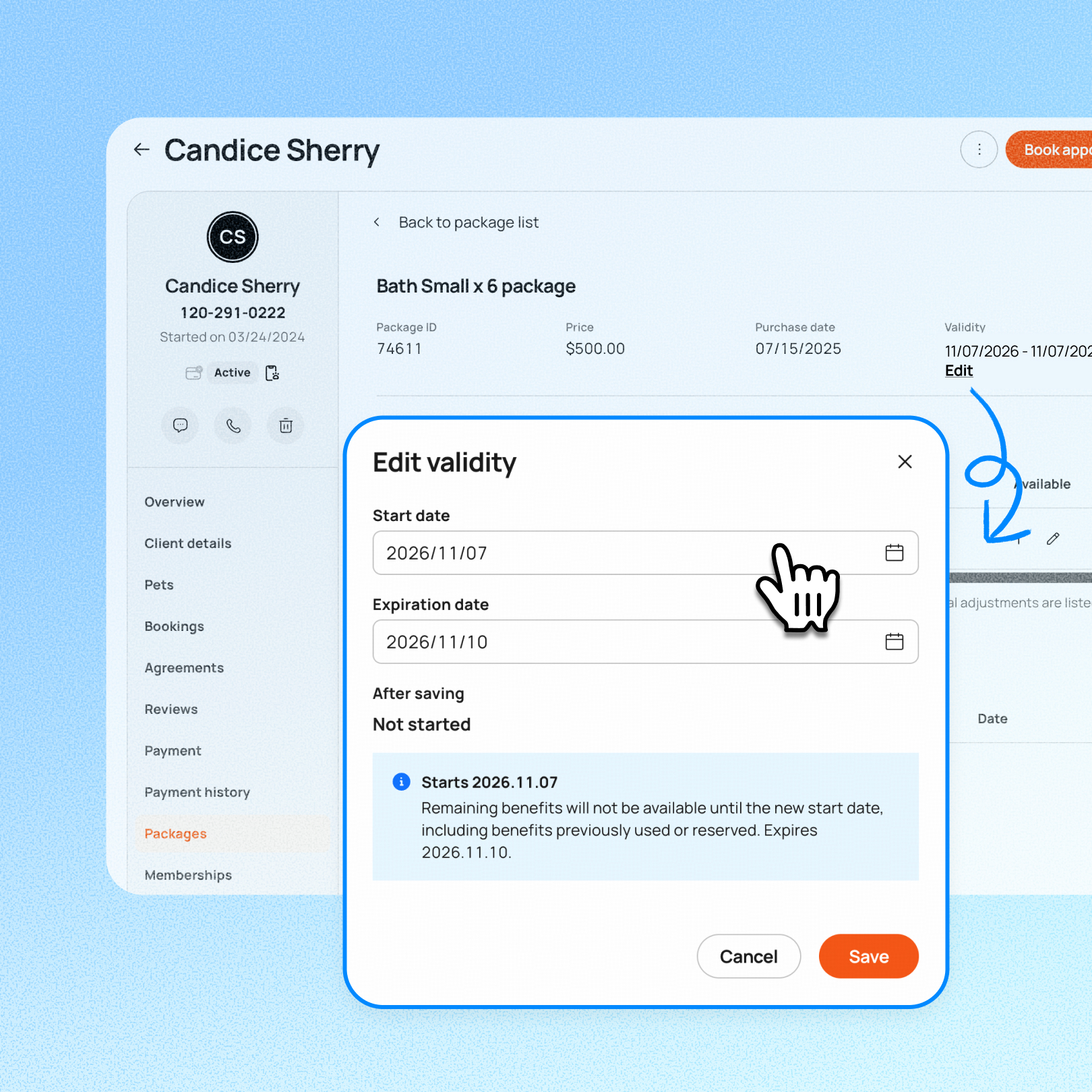
You can now correct both the start and expiration dates of a purchased package, so the remaining benefits follow the dates you originally agreed on. Before, you could only extend the expiration date later.
💡 Package is currently an open beta feature. Contact our 24/7 support chat or your account manager to set this up.
Use case:
A client buys a 30-day package, but it’s entered five days late. Staff open the package’s details, choose Edit validity, and move the start date back to the agreed date. They check the preview, save, and the package now ends when the 30 days were meant to end.
👉 How to access
- Open the purchased package’s details under the client profile
- Select Edit validity
- Change the start date, expiration date, or both
- Review the preview of whether the package will be Active, Not started, or Expired
- Save
⚠️ Note
- Moving the start date into the future makes the remaining benefits unavailable until that date
- The expiration date can equal the start date but cannot come before it
- Saving keeps the purchase date, historical usage, and existing booking records unchanged
- Existing reservations are checked against the updated dates at their next package preview or redemption
- Packages that are already expired, or have no expiration date, cannot be edited
- Setting an eligible package’s expiration date in the past expires it immediately on save, making the remaining benefits unavailable
Platform Availability
Web version
Mobile version
Availability


How to access
Purchased package’s details → Edit validity
N/A
Before You Start
-
Plan availability: All plans
- Business Type: Grooming, Boarding & Daycare